


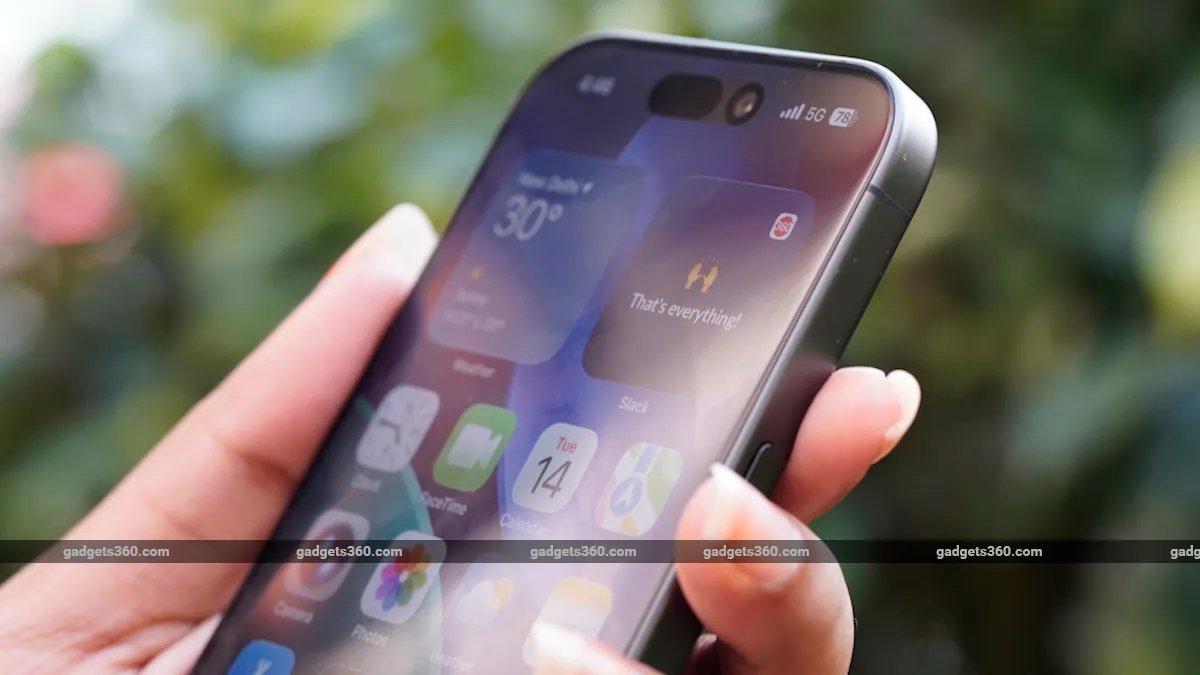
Most of us tap ‘Allow’ when an app asks for location access without giving it much thought. It makes sense for Google Maps to know where you are, but a photo-editing app or a game might not need that information at all. If you’ve given several apps permission to access your location over time, it’s worth checking which ones can still use it. You can revoke access without uninstalling them, and the process is fairly simple on both Android and iPhone.
How to Turn Off Location Tracking for Apps on Android
- Open Settings on your Android phone and head to Location.
- Tap App location permissions. You’ll see a list of apps and whether they’re allowed to access your location.
- Find the app you no longer want to share your location with and tap it.
- You’ll see a few options here. Select Don’t allow if you want to cut off location access completely. If you’d rather let the app use your location only when you’re actively using it, choose Allow only while using the app.
- Some apps may also have a Use precise location toggle. Turn it off if you’re comfortable sharing your general area but don’t want the app to know your exact location.
How to Turn Off Location Tracking for Apps on iPhone
- Open Settings on your iPhone and tap Privacy & Security.
- Select Location Services to see which apps can access your location.
- Scroll through the list and tap the app whose location access you want to change.
- Under Allow Location Access, select Never if you don’t want the app to access your location at all. If you’d still like it to know where you are while you’re using it, choose While Using the App instead.
- Some apps don’t need your exact location to work. If you want to share only your approximate location with one of them, turn off Precise Location on the same screen.
Turning off location access limits how apps can use your phone’s location, but it doesn’t block every way they might estimate where you are. For example, an app may use your IP address to get a rough idea of your location. The information it can collect depends on the app and the permissions you’ve given it.
If you’re concerned about privacy, it’s worth checking what each app actually needs. Some may work just fine without location access, while others, such as navigation apps, need it to do their job. You can also turn off Precise Location for apps that don’t need your exact whereabouts.
FAQs
1. How do I turn off location access for an app?
Go to your phone’s location settings, select the app and change its location permission.
2. Can I turn off location access for just one app?
Yes, both Android and iPhone let you manage location permissions for individual apps.
3. Does turning off location access stop all tracking?
No, apps may still estimate your location using your IP address or other data.
Get your daily dose of tech news, reviews, and insights, in under 80 characters on Gadgets 360 Turbo. Connect with fellow tech lovers on our Forum. Follow us on X, Facebook, WhatsApp, Threads and Google News for instant updates. Catch all the action on our YouTube channel.