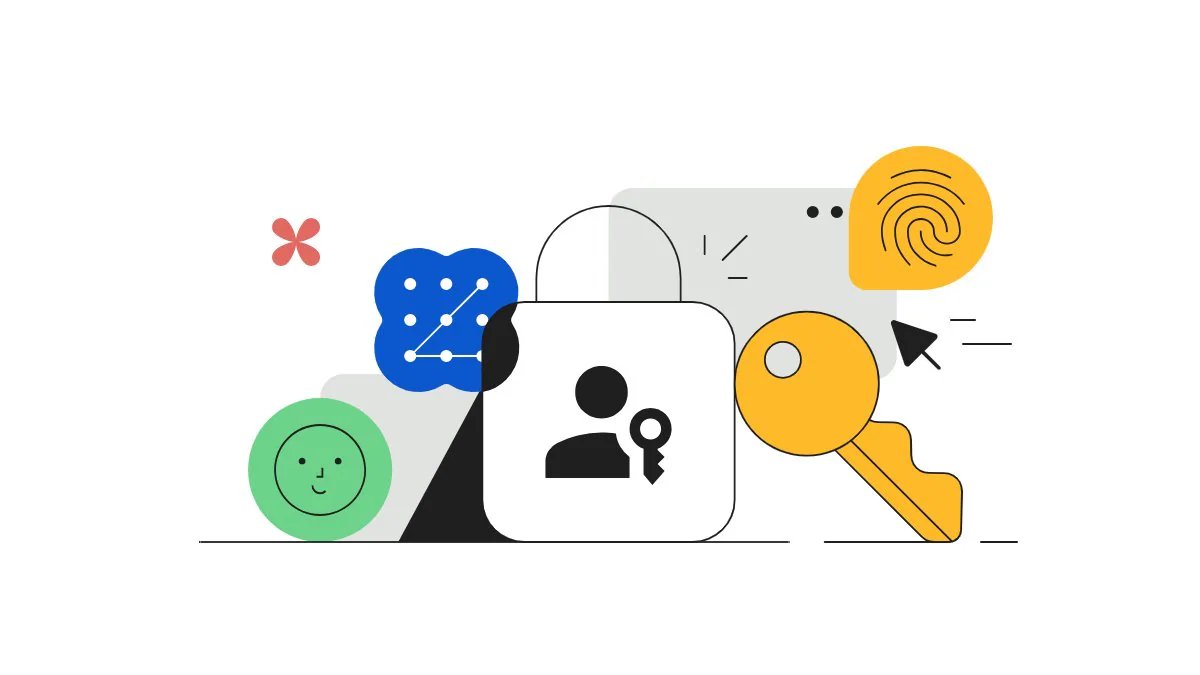
Google unveiled Passkeys in 2023 to reduce reliance on passwords. They came as a secure alternative to traditional passwords and offer an easy way to sign in with your biometrics. Google positioned Passkeys to resist online attacks like phishing. Passkeys are saved and synced by the password manager, and this allows users to sign in on other devices with the same Passkey. You can create passkeys for your Google Account and use them to sign in on supported phones, computers and other devices. For instance, a passkey created on an Android phone will also let you access the Google Account when moving to a new device, including an iPhone.
Depending on the device, Passkeys allow users to sign in to apps and websites with a PIN, fingerprint scanner, and face unlock. In this article, we will guide you through steps to set up a passkey for a Google Account.
How to Set Up a Passkey for a Google Account
Google recommends that users create passkeys on devices they own and use to make them more secure. Google may ask you to sign in to your account or verify your identity during setup.
You can create a Google Account passkey by following these steps:
- Head to the Google Account passkeys page.
- Tap Create a passkey.
- Select Create a passkey again if prompted.
- Unlock your device using its screen-lock method.
- Follow any additional instructions shown on the screen.
To create passkeys on multiple devices, repeat these steps on those devices. After creating the passkey, you can use it to sign in to your Google Account on that device.
How to Sign In to a Google Account With a Passkey
After setting up a passkey, it acts as an alternative to entering your account password. Depending on the device, users can authenticate with a fingerprint, face scan, screen lock or PIN.
Follow these steps to sign in with a passkey:
- Head to the Google sign-in page.
- Type your Google Account username.
- Select the passkey if it appears as an available sign-in option.
- Follow the instructions shown by your device or browser.
- Unlock the device using your fingerprint, face recognition, PIN or other supported screen-lock method.
You can use Passkeys to sign in to a computer with a passkey stored on a compatible Android phone, iPhone, iPad or hardware security key. In these situations, Google sometimes show a QR code that can be scanned with your phone’s camera or QR code scanner app. You can then verify your identity on your phone with your fingerprint, face unlock, or PIN.
Creating a passkey does not remove the password linked to your Google Account. Users can still use their password when needed. However, creating a passkey enables a passkey-first sign-in experience by default. Users who prefer to use their password first can change this preference in their Google Account security settings by signing in to their Google Account>Tap Security & sign-in> Tap How you sign in to Google> turn off Skip password when possible.
FAQs
Can passkeys protect against phishing and scams?
Passkeys are designed to offer protection against phishing and scams, as they cannot be copied the same way as a password.
Can I use face recognition to sign in with a Google passkey?
Yes. On supported devices, face recognition can be used to verify your identity when signing in with a passkey.
Do passkeys replace Google Account passwords?
Yes. Google launched Passkeys as an alternative to passwords, and they provide a passwordless way to sign in.