


Mozilla is rolling out a native ad blocker for Firefox on iOS that can reduce the number of advertisements users encounter while browsing. The experimental feature operates at the network level and uses an EasyList-based filter to block many ads before they load. It can also stop ad-related trackers, third-party advertising networks, pop-ups and overlays. Mozilla is introducing the feature gradually, so it may not be available to every Firefox for iOS user yet. The ad blocker is switched off by default when introduced.
Firefox for iOS Native Ad Blocker Starts Rolling Out to Users
According to a Mozilla support page, Firefox for iOS now offers an optional ad blocker that works at the network level. The feature uses a filter list based on EasyList to identify and block many advertisements before they load. It can filter ads from third-party advertising networks and exchanges, ad-related trackers and many third-party advertisements served by websites. It also targets more intrusive formats, including pop-ups and overlays that appear while browsing.
The blocker does not prevent every advertisement from appearing. Mozilla notes that websites use different technologies to deliver ads, and some of those methods may not be covered by the current filter list. This means users may still encounter certain advertisements even after enabling the feature. The blocker is also designed to leave some advertising categories untouched.
Ads displayed on search engine results pages are not blocked. This applies to advertising shown on Google, Bing, DuckDuckGo and other search providers. Mozilla also excludes sponsored content that appears on the Firefox Home or New Tab page from the ad-blocking feature.
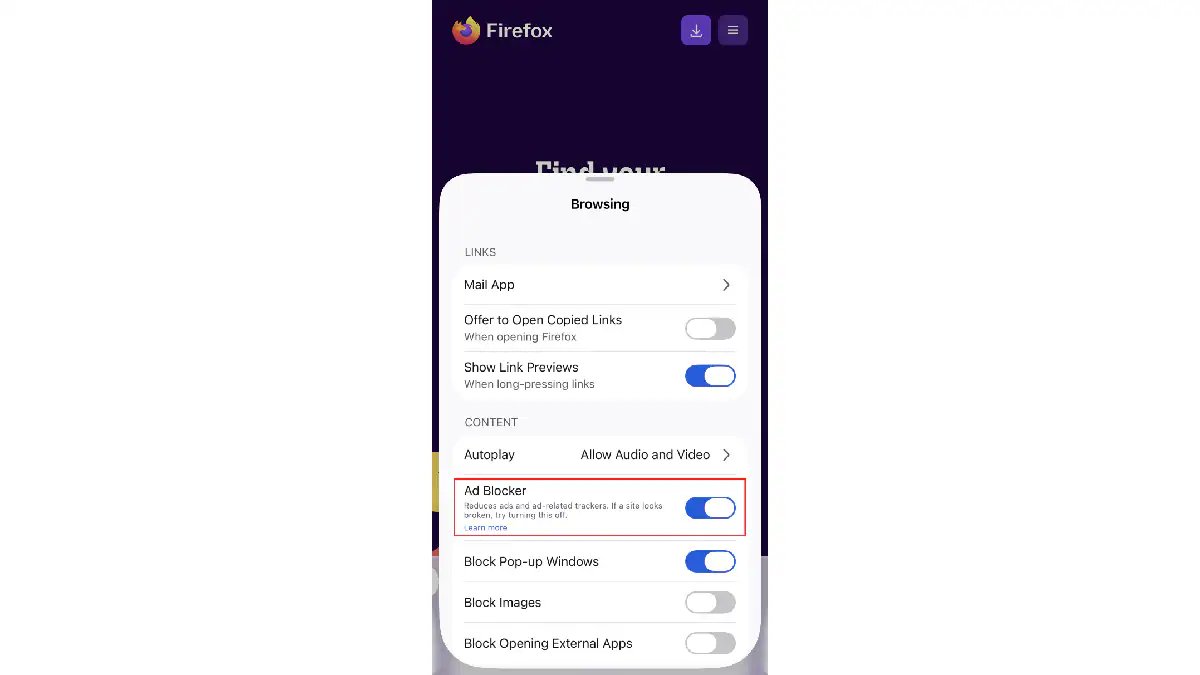
Users can enable the feature through Firefox’s main settings. After opening Firefox for iOS, they can tap the menu button, select Settings and scroll down to Browsing. The Ad Blocker option is under the Content section, where users can switch it on or off. Mozilla also allows users to control the feature while visiting a website through the Site menu.
To change the setting during browsing, users can open a webpage, tap the menu button and select Ad Blocker from the Site menu. Firefox opens the relevant setting, allowing users to enable or disable the feature for the browsing session. This provides a quicker alternative to navigating through the full Settings menu.
The ad blocker is disabled by default, so users need to activate it if they want Firefox to filter advertisements. Mozilla says the setting can be changed at any time through either the main Settings menu or the Site menu. The feature is currently experimental and is being introduced through a progressive rollout, meaning it may not yet be available to every Firefox for iOS user.
Mozilla has not announced when the feature will become available across the entire Firefox for iOS user base. For now, availability depends on the ongoing rollout, while the current implementation remains subject to the limitations of its advertising filter.